
Start with one audience, message, and action
You have a product sample and a folder of photos. The next step is to turn them into a video that answers a buying question. To create a commercial video, define that decision, choose one demonstrable message, and plan the visuals before capturing or assembling footage. Edit a first cut around that message, then review the exported file and its destination in the intended placement.
This tutorial follows a fictional product: Nest, a steel desk tray with one removable divider. Its invented external dimensions are 24 × 16 × 3 cm. We also provide a finished silent motion-graphic teaching example built from original schematic artwork. It illustrates message order; it does not show a real tray or establish physical product performance.
Watch or download the original 15-second schematic example.
Use it to see the intended sequence before following the production steps below.
Write a brief this small before production:
| Decision | Teaching example |
|---|---|
| Audience | A shopper organizing a small desk |
| Main message | The divider allows two interior configurations |
| Supporting fact | External dimensions of 24 × 16 × 3 cm |
| Target placement | A vertical mobile preview, subject to the actual placement’s requirements |
| Target runtime | 15 seconds |
| Next action | Inspect both configurations and dimensions |
| Exclusions | No claim about productivity, scratch resistance, or tested capacity |
If evidence is missing for the proposed claim, choose a narrower message supported by the assets you have. A product image can introduce the item while you arrange a real demonstration of its mechanism.
Choose the placement and production approach
The same idea can become a social ad, product-page video, event display, or sales presentation. Check the actual delivery requirements before locking the edit. A vertical social placement and a landscape presentation need different composition and text space.
TikTok’s official creative guidance, checked October 29, 2026, recommends a vertical 9:16 format, at least 720p, and attention to interface safe areas. These are production starting points for that context, not guarantees of campaign results.
Choose a production route based on the claim you need to communicate:
| Route | Useful when | Inputs required | Important limit |
|---|---|---|---|
| Phone capture | Physical use or handling matters | Actual product, simple lighting, stable camera, performer if needed | A short staged shot may not establish a performance claim |
| Existing footage | Relevant approved footage already exists | Original files, rights, exact variant, usable views | An editor cannot recover an action that was never captured |
| Product-image motion graphic | Identity, configurations, or dimensions can be illustrated | Accurate images or clearly labeled original diagrams | Animation is not physical proof |
| AI-assisted visual exploration | You need concept or layout options | Approved inputs and clear review criteria | Generated visuals cannot verify fit, mechanism, or results |
Our teaching example uses original diagrams. For a real tray launch, physical footage of the divider coming out would be stronger evidence of the mechanism.
Write a script and a shot list
Use a script row for each message beat. Map every claim to a shot or asset before filming.
| Target time | Message | Physical footage you would capture | Teaching example asset |
|---|---|---|---|
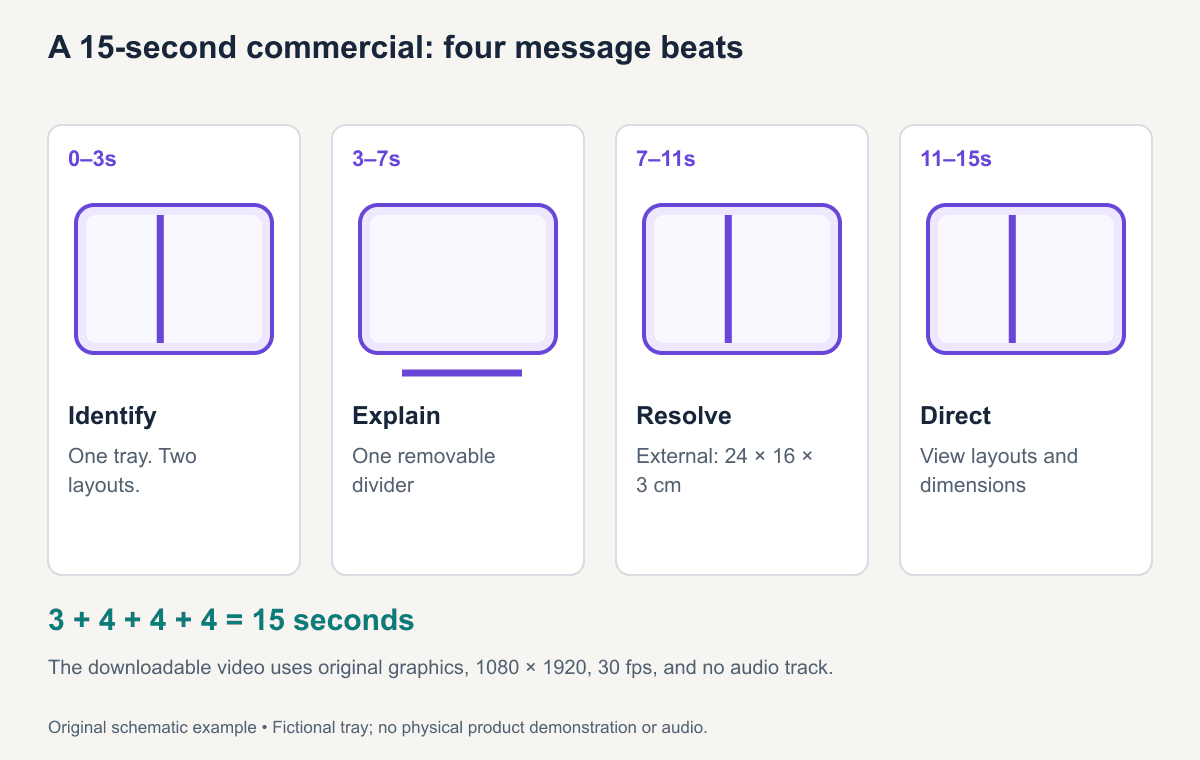
| 0–3 seconds | One tray can have two layouts | Show the actual tray from above | Schematic divided tray |
| 3–7 seconds | The divider is removable | Continuous shot of removal | Clearly labeled configuration diagrams |
| 7–11 seconds | Check the external footprint | Product with scale reference | Dimension graphic: 24 × 16 × 3 cm |
| 11–15 seconds | Inspect layouts and dimensions | Product ending with destination prompt | A readable closing card |
For the real capture list, specify wide view, top view, divider removal, dimension reference, and closing product frame. Keep the same variant across shots. Use the marketing script tutorial for longer versions and the general script template for timing and handoff.
Capture or prepare the essential footage
For a simple phone shoot, clean the product and the background. Use a stable support, consistent lighting, and a composition where the relevant part is large enough to inspect. Record a short test and view it on the intended screen before capturing the whole list.
For a mechanism, capture the complete action without an unexplained swap. For a dimension, show where the measurement starts and ends. For a contents claim, show what actually ships. Keep decorative props from implying that they are included.
If someone speaks, listen to the recording through headphones. Background hum, clipping, and an indistinct voice may survive a visually attractive take. Record clean dialogue where possible rather than expecting music to hide the problem.
For existing files, inspect resolution, crop space, variant, rights, and text already baked into the image. For generated or illustrated assets, label their role accurately. A diagram explaining a product concept should not be presented as a photograph of a manufactured object.
Build a minimum capture list for one product
For a first tray video, plan four usable shots. Use your actual SKU for each one:
| Shot | Capture requirement | Accept it when |
|---|---|---|
| Product identity | Whole tray from above, before props obscure it | A new viewer can tell what is sold |
| Mechanism | Divider removal from start to finish in a continuous take | The hand and divider stay visible through the action |
| Fit information | Stable measurement view with units | The dimensions refer to the same item and state external or internal |
| Closing product view | Clear space for a short action label | Product and label remain readable in the placement preview |
If you only have still images, make an image-led cut using the identity, accurate configuration views, and a dimension graphic. Describe the layouts it shows; leave an unrecorded physical action out of the claim. Put missing footage on the next capture list.
Save the accepted source takes with the SKU, shot ID, and date. Editors can then shorten the sequence while retaining the evidence needed for each message.
Edit the video around the message
Build the first cut
Place the clearest product explanation on the timeline first. Add the opening that gives it context, then the ending that follows from it. Remove clips that repeat an idea without improving understanding.
For the teaching cut, we use four cards with durations of 3, 4, 4, and 4 seconds. The sequence totals 15 seconds. Each card adds one piece of information; the last does not introduce a new feature.
Add captions, on-screen text, and audio
Use captions when there is speech, and check them against the recording. Additional labels should be short enough to read at the actual playback size. Give dimensions a stable frame and use units consistently.
Our supplied example has no voiceover or music, so its information appears as on-screen text and diagrams. A silent example does not test audio balance. If you add audio to a real version, confirm its usage rights, intelligibility, and balance with speech before exporting.
Create a clear closing frame
Keep the product and the next action visible together. “View both layouts and dimensions” promises specific information. In a real campaign, the click destination must supply that information for the same product. The example’s action is illustrative; the fictional product has no checkout.
Export and review for the intended placement
Export a file that matches the placement’s current requirements. Our local teaching file is an H.264 MP4 at 1080 × 1920 and 30 frames per second, without an audio track. Those are this artifact’s settings, not a universal delivery specification.
Review the exported file rather than relying only on the editor preview:
- Play it from beginning to end and check the actual duration.
- Inspect the opening, each information change, and the closing frame.
- Preview at phone size and in the destination’s placement preview when available.
- Check crop, interface overlap, caption accuracy, units, and product consistency.
- Follow the actual link and confirm the destination keeps the video’s promise.
- Confirm the rights and approval status of footage, people, music, and other assets used.
A review can establish that the export is readable and technically usable. It cannot establish that an ad will be approved by every platform or perform well with an audience.
A complete commercial video walkthrough
The example near the start shows the four-card sequence described above. The package includes the four source frames, the storyboard above, and an editable production worksheet. The diagram’s tray dimensions and configuration are fictional teaching inputs. The artwork is original and contains no borrowed product photography or music.
The production record is deliberately concrete:
| Item | What this example uses |
|---|---|
| Visual assets | Four original schematic cards |
| Capture | No camera shoot |
| Audio | None |
| Sequence | 3 seconds + 4 seconds + 4 seconds + 4 seconds |
| Render | A single 15-second vertical MP4 |
| Cost or time claim | No measured production-time or campaign-cost claim |
| Evidence provided | Message sequence and graphic readability |
| Evidence not provided | Physical operation, actual fit, customer response, or sales |
For a real product, replace the schematic mechanism section with verified footage and retain the useful order: identify, demonstrate, resolve an important question, and offer the next step.
Fix the first cut before making more versions
| Problem in the exported video | First correction |
|---|---|
| Viewers cannot identify the item | Move the clear product view earlier and name it |
| The key mechanism happens during a cut | Replace that section with the complete action |
| Dimensions disappear too quickly | Hold a stable frame and shorten surrounding copy |
| Essential text sits behind interface controls | Reposition it using the actual placement preview |
| The ending links to a different variant | Align the export, selected SKU, and destination |
Review at normal playback speed after the correction. Stop expanding variants until the core explanation is understandable. The next version should test a useful creative choice, not repeat an unresolved production error.
Create a second version and compare results
Change a variable for a reason. Version A could open with the two layouts; version B could open with the dimension question. Keep the same product evidence and destination if the goal is to compare openings.
Before launch, define the main outcome and observation window. After launch, separate attention from action: a video can be watched without driving qualified product visits, and visits can fail to become purchases for reasons outside the creative.
Do not report the teaching example as a winning ad. It has no campaign data. Use the short-form measurement plan to design your own evaluation.
If you are ready to explore another product-ad concept, start with ReelFlock’s video workflow. Carry forward the reviewed product facts and identify the opening you want to change.
Frequently asked questions
Can I make a commercial video with a phone?
Yes, when the phone capture clearly communicates the product and the intended claim. Stable framing, readable details, consistent light, and clean audio matter more than adding equipment without a specific need.
Can I use existing product images instead of new footage?
Yes, for messages the images can support, such as identity, appearance, or accurately labeled dimensions. A moving image sequence does not establish how an unrecorded mechanism works or how the product performs.
What determines the time and cost of making a commercial?
Asset readiness, locations, performers, number of setups, demonstrations, rights, revisions, output formats, and review requirements. Estimate from that scope. A generic price or turnaround promise would hide the work that changes the result.