
To edit a TikTok post's written description before publishing, change it on the posting screen. After publishing, open your own post, check its More options menu for Edit post, and use the editable fields if that option is available. Follow the limits displayed for that post.
If the mistake is in spoken-word subtitles or text embedded in the video, you need a different editing path. For a seller, identifying the affected text first prevents a corrected description from leaving the actual sales claim unchanged on screen.
Identify which caption needs changing
| Text you want to change | Where it lives | Where to start |
|---|---|---|
| Description, hashtags or mentions | Post metadata | Posting screen before release; Edit post afterward if available |
| TikTok-generated speech captions | Caption layer associated with the video | Caption controls for that video, where available |
| Text added in the video project | Editable project before export | Original project or draft |
| Text burned into an uploaded export | Picture pixels | Correct and export the video again |
You can often recognize embedded text because it appears in the video file when played outside TikTok. The original project is the most dependable place to correct it.
This guide uses conditional menu steps because TikTok controls vary. No live account editing test was performed for this article, and the available evidence does not establish a universal six- or seven-day description-editing window. Check the controls and limits shown on your actual post before deciding what to do.
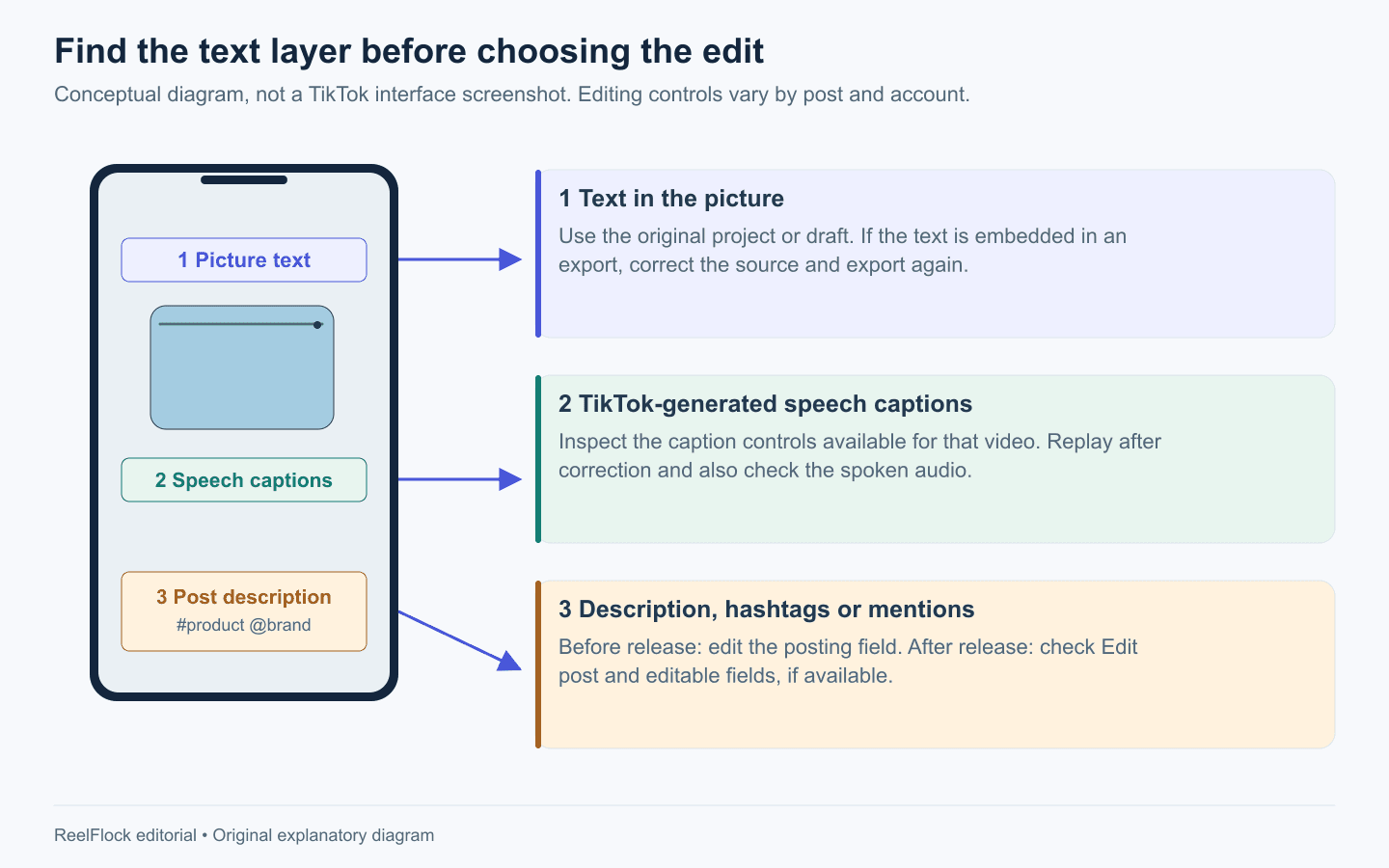
Identify the affected layer first. This is a conceptual routing diagram; published-post editing depends on the controls actually available to the account and post.
Edit the description before posting
Before release, you have the best opportunity to make the description, video and destination agree.
- Record or upload the intended video.
- Complete the video edit and proceed to the posting screen.
- Read the description field and correct the wording, hashtags or mentions.
- Check the selected account and any product destination available in your workflow.
- Preview the video alongside the written text.
- Publish only after checking the exact product, offer and required disclosures.
For a fictional two-piece storage set, “Three organizers for your bathroom” is a material error. Correct it wherever it appears: the description, voiceover, subtitle layer and on-screen graphic. A good description cannot resolve an incorrect pack count in the video.
Keep a copy of the approved description with the master export. This makes it easier for another publisher to select the correct wording later.
Edit the description after posting, if the option is available
Use your own account and the specific post you need to correct:
- Open Profile and select the post.
- Open its More options menu, usually shown with three dots.
- Look for Edit post.
- If the description is editable, make the correction in that field.
- Save using the control shown in the app.
- Reopen the post and confirm the saved text is visible.
If Edit post is missing, or the description field is unavailable, check for an app update and consult TikTok's current Help or in-app support. The steps above are a way to inspect your available controls. They do not establish that a description editor is enabled for every account or post.
Change only the affected wording and inspect the result. A post editor should not be assumed to replace the video, alter every shopping attachment or update any separately configured paid campaign.
Correct subtitles without confusing them with the description
While editing an unpublished video, inspect the Captions tool if it is present. Read the transcription line by line, correct errors and save before continuing. If you are still in the original editing project, correct text there while it remains editable.
For an already published video with TikTok-generated captions, check whether tapping the displayed caption exposes Edit captions. If it does, correct the affected words and save, then replay the video. Follow the controls available for that caption type. TikTok's accessibility guidance is the primary reference for its caption features; access and wording can vary. TikTok: Accessibility.
Pay special attention to quantities, units, model names and negation. “Contains fragrance” and “contains no fragrance” communicate opposite product facts. Listen to the audio as you review: fixing a transcription error does not fix a mistaken spoken claim.
If the text is embedded in the file, return to the source project, correct the layer and export a new version. When the source is unavailable, choose a new clean edit or rerecording if needed. Covering an old price with a new text box can create an unclear or misleading frame, particularly during motion.
Choose a response based on the consequence of the error
Use the following editorial triage method to choose a response for your store.
| Error | Practical response |
|---|---|
| Minor typo that leaves the meaning intact | Use the available edit path; confirm the saved result |
| Unclear product name or variant | Correct editable text and inspect every layer for the same ambiguity |
| Wrong price, pack count, offer deadline or delivery promise | Prioritize correction; pause related releases and inspect whether the live content must be taken out of circulation |
| Missing sponsorship context or unsupported claim | Correct the disclosure or claim in the places viewers encounter it; review related content before further use |
| Error embedded in the video or audio | Prepare a corrected export and decide how to handle the existing post |
For US endorsements, the FTC explains that video disclosures should appear in the video, and a description alone may be insufficient. Correcting a hashtag under the post therefore may leave a separate disclosure problem in the creative. FTC: Disclosures 101.
If you need to replace the post
Prepare the corrected video and description before changing the live version, unless the error requires an immediate stop. Preserve the original source, the post reference and any information your team needs to understand the correction.
Then check the dependencies: is a creator or partner linking to the post? Is it connected to paid promotion? Is the same offer scheduled elsewhere? Handle each affected use in its own system.
A replacement upload is a new post. Existing comments, engagement and links do not move into it automatically. Decide whether a minor error justifies that disruption; for a materially incorrect sales claim, clarity and accuracy deserve priority.
Do not rely on a corrective comment to override an incorrect price or statement embedded in the video. Some viewers will never open the comments.
Make the next correction less likely
Create a final text check with one row for each layer:
| Layer | What the reviewer verifies |
|---|---|
| Description | Product, offer, destination wording and context |
| Spoken audio | Facts, quantities and supported benefits |
| Subtitles | Accurate transcription, especially numbers and negation |
| On-screen graphics | Variant, price, dates and readable qualifications |
| Listing or landing page | The same product and current terms |
Assign one person to approve the whole package. Splitting the layers among several reviewers can leave everyone assuming someone else checked the relationship between them.
For a recurring promotion, keep offer copy separate from evergreen product information. When the offer changes, your team can identify the affected outputs quickly.
Carry approved product content into ReelFlock
Once the text is corrected, keep the approved wording with the product facts used for the next batch. ReelFlock can help turn those facts and scripts into product-video variations and support review before publishing. If you already have a corrected finished export, upload it and assign its publishing account.
Use TikTok's available controls for changes to existing published posts. This workflow does not give ReelFlock a published-caption editing capability.
Build the next product-video batch in ReelFlock with checked product wording, then apply the layer-by-layer review before release.